


Which wallet should Android users choose?

Android users searching for google wallet for android are usually trying to solve a very specific problem: tap-to-pay with bank cards and store passes (tickets, transit, loyalty, sometimes digital IDs). But on Android, the word "wallet" also covers a completely different category: non-custodial Web3 wallets for crypto, NFTs, and DApps. This guide helps you pick the right wallet (or the right combination) based on what you actually want to do.
1) First, define what "wallet" means for your Android use case
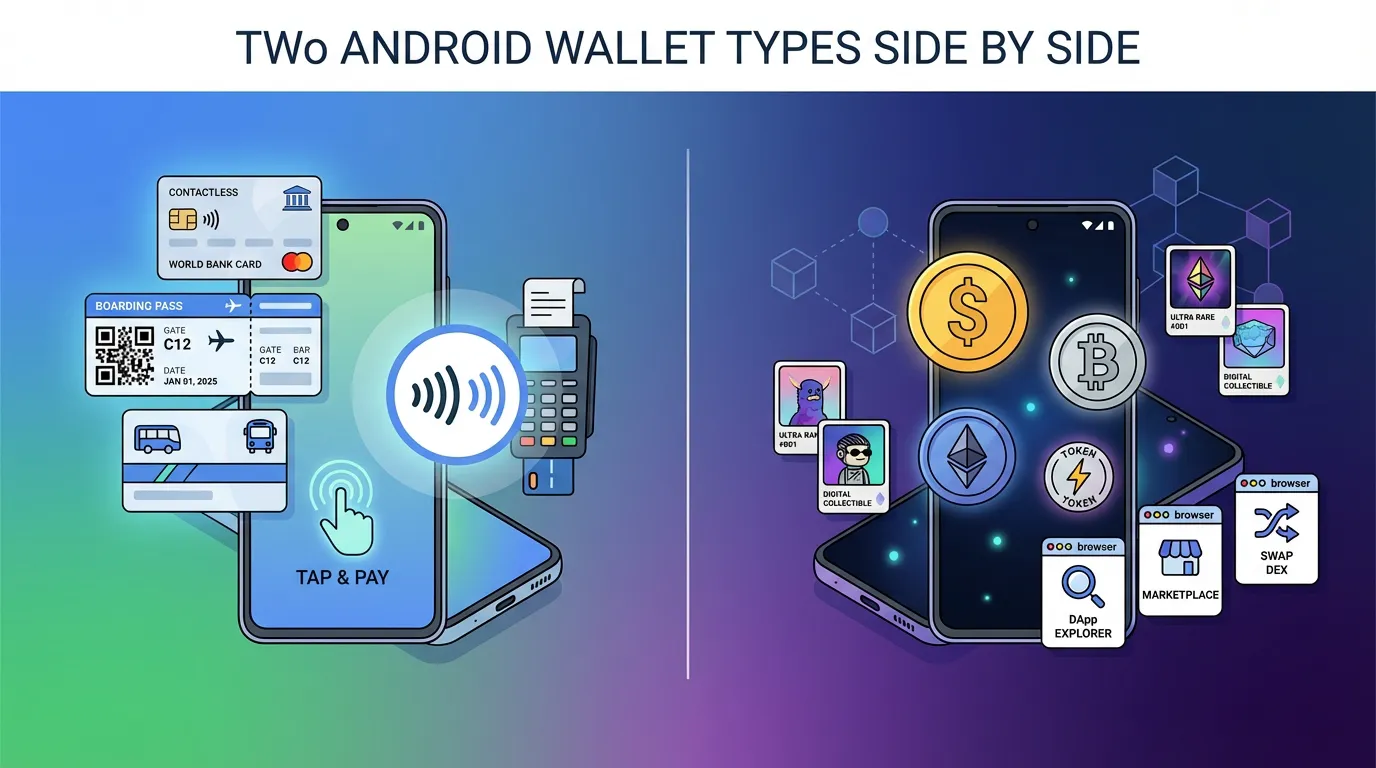
On Android, "wallet" commonly refers to two different tools:
- Payment and pass wallets (Web2): built for cards, tap-to-pay, tickets, and IDs.
Example: Google Wallet (payment cards, transit, loyalty, event tickets, and region-dependent digital IDs) per Google documentation and tutorials from sources like the Google Wallet Help Center. - Non-custodial Web3 wallets (crypto): built for self-custody of crypto assets, multi-chain portfolio management, NFTs, DApps, and on-chain transactions.
A simple rule works well:
- If your goal is in-store payments and passes, a payment wallet is the right tool.
- If your goal includes crypto ownership, DeFi, NFTs, or DApps, you need a non-custodial Web3 wallet (and you can still keep your payment wallet for daily spending).
2) How to use Google Wallet on Android (best for tap-to-pay and passes)
Google Wallet is optimized for everyday Android convenience: it stores payment cards and passes, and it's tightly integrated with Android security. Based on Google's official guidance, it uses security measures like tokenization and device unlock requirements (screen lock/biometrics) for payments, plus account-level controls if your phone is lost (Google Wallet Help Center).
Quick setup checklist (payments and passes)
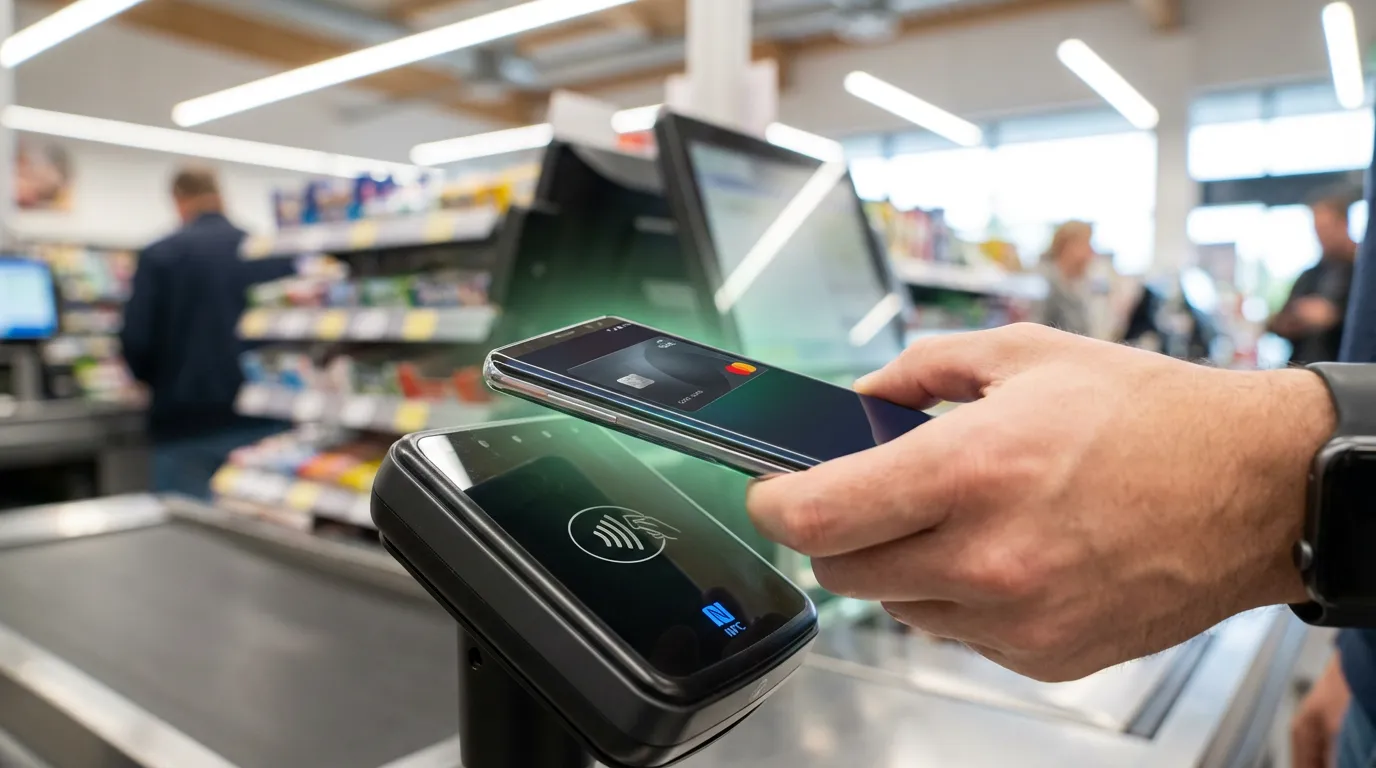
- Confirm your phone supports NFC (needed for tap-to-pay).
- Install/update Google Wallet from Google Play (often preinstalled).
- Add a payment card (availability depends on your bank/region).
- Enable tap-to-pay and confirm your phone has a secure screen lock.
- Add passes (boarding passes, tickets, loyalty cards) when you see "Add to Google Wallet" options.
Recent Android coverage also highlights Google Wallet becoming more of a centralized hub for purchase history and transaction visibility, with ongoing UI and history updates reported by outlets like 9to5Google, Android Central, and Pocket-lint.
What Google Wallet does not do
Google Wallet is not a crypto wallet. It does not provide:
- Self-custody of crypto
- NFT storage
- A DApp browser
- DeFi access
If those are requirements, you'll want a separate non-custodial Web3 wallet.
3) When an Android user should add a Web3 wallet (crypto, NFTs, DApps)
You likely need a Web3 wallet on Android if you want to do any of the following:
- Hold crypto under your own control (non-custodial self-custody)
- Manage assets across multiple blockchains in one place
- Connect to DeFi protocols or other DApps
- View and transfer NFTs
- Swap tokens on-chain (and for advanced users, do cross-chain swaps)
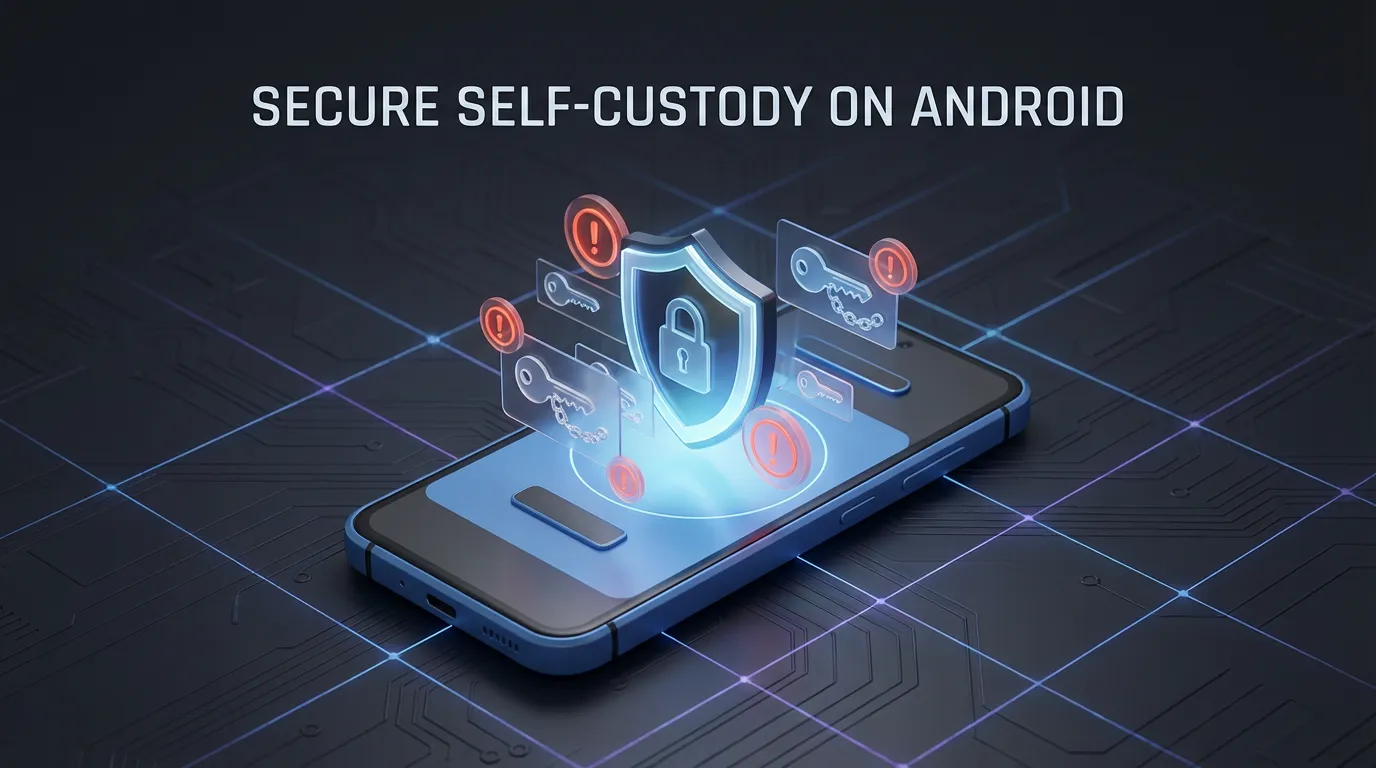
Just as importantly, a Web3 wallet changes the security model: you are responsible for protecting your recovery materials. Multiple safety checklists and wallet guides emphasize that losing recovery access can mean losing funds permanently (see general wallet safety discussions in sources like Money.com's crypto wallet coverage and Android wallet selection guides such as CryptoProfitCalc's Android wallet guide).
4) How to choose a non-custodial Web3 wallet on Android (what matters most)
When Android users evaluate Web3 wallets, most credible comparisons converge on a few deciding factors: custody model, security features, chain support, usability, and DApp/DeFi access.
Here is a practical checklist you can use:
| What to check | Why it matters on Android | What to look for |
|---|---|---|
| Non-custodial self-custody | You control assets directly, not an intermediary | Wallet provider does not hold keys or funds |
| Local key protection | Your phone is a high-risk environment (apps, links, phishing) | Encrypted local storage, secure isolation, clear backup flow |
| Multi-chain asset management | Many users end up on more than one network | Unified portfolio view, auto-detection of tokens/NFTs |
| DApp browser + ecosystem integration | Needed for DeFi, NFTs, GameFi | Built-in browser, secure connection and approvals |
| Swap and cross-chain capability | Reduces friction for active users | Aggregated routing, slippage-aware execution, transparent costs |
| Risk alerts | On-chain approvals can be dangerous | Phishing detection, malicious contract warnings, pre-transaction alerts |
Where FoxWallet fits for Android users
As a Web3 wallet, FoxWallet is positioned around three core needs that show up repeatedly in Android wallet comparisons:
- Full user control (non-custodial): FoxWallet is designed so users retain complete control over private keys and assets, with keys stored locally in encrypted form.
- Multi-chain asset management: A unified view designed to reduce multi-chain complexity, with real-time on-chain synchronization.
- Cross-chain and on-chain trading built in: Native integration of swap aggregation and cross-chain routing designed to optimize price/liquidity and reduce slippage, with an emphasis on lower swap fees and reduced hidden costs over time.
- Security-first protections: Risk alerts and smart contract recognition, plus phishing and malicious contract defenses (as described in FoxWallet materials and supported by third-party coverage).
For additional background, FoxWallet also summarizes the broader wallet landscape in its own research-style content, which can be useful for orientation: FoxWallet Blog: "The 5 Best Crypto Wallets of 2026".
5) How to set up FoxWallet on Android (and use it alongside Google Wallet)
Many Android users end up using both: Google Wallet for daily payments, and a Web3 wallet for crypto and DApps.
Step-by-step: get FoxWallet on Android
- Download FoxWallet from Google Play.
- Create a new wallet (or import an existing one).
- Back up your recovery materials carefully (offline and private). FoxWallet also provides beginner education content covering mnemonics and private keys: Learn with FoxWallet on YouTube.
- Enable device security (PIN + biometrics) and keep your OS updated.
- Use the built-in DApp browser when you need DeFi/NFT access, and review risk alerts before confirming transactions.
A practical "two-wallet" routine for Android users
- Use Google Wallet for tap-to-pay and passes.
- Use FoxWallet for crypto self-custody, multi-chain asset management, DApps, and on-chain swaps/cross-chain swaps.
Security checklist (non-custodial basics)
- Never share recovery phrases or private keys.
- Avoid installing wallet apps from unofficial sources.
- Treat unexpected links and "airdrop" claims as potential phishing.
- Read transaction prompts carefully, especially approvals and signatures.
CTA: pick the wallet that matches your goals
If you only need payments and passes, Google Wallet is likely enough. If you also want crypto ownership and Web3 access on Android, add FoxWallet and start with a small, educational transaction before doing anything complex. For platform options beyond Android (including extension), use the official FoxWallet download page.
Educational content only; not financial or legal advice.